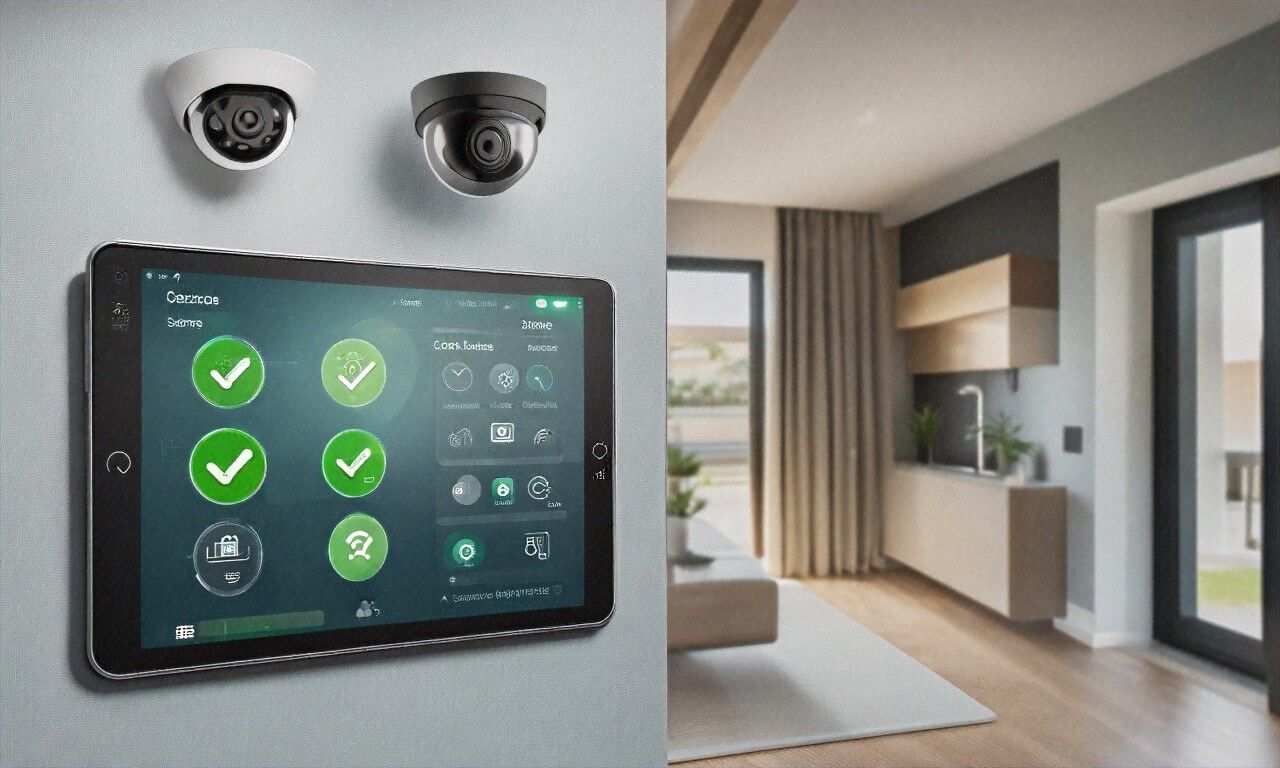
A security researcher in Atlanta demonstrated last year that he could unlock a family’s front door, disable their cameras, and turn off their alarm, all from a laptop in a coffee shop across the street. Took him about forty minutes. The family had a Ring doorbell, Nest cameras, an August smart lock, and a SimpliSafe system. Everything was set up according to the manufacturer’s instructions. Nothing was misconfigured. The products worked exactly as designed. That was the problem.
, because I broke into my own setup in twenty minutes flat. Not hypothetically. Last year, I sat down with a laptop running Kali Linux and a handful of freely available tools, and I went after my own smart home. Smart cameras, a thermostat, a bunch of light bulbs, a voice assistant, a smart lock on the front door. Found an unpatched hole in the camera firmware. Discovered my smart plugs were broadcasting in cleartext: just shouting data into the void. And then I unlocked my front door by poking at a weakness in the lock’s Bluetooth implementation. Twenty minutes. I’m not even a pen tester. Just a grumpy ex-sysadmin who reads too many CVE reports.
So yeah. The advice you’re getting from most “smart home setup guides” is garbage, and I’m a little tired of watching people sleepwalk into a house full of attack surfaces while some blog tells them to “just change the default password.” That’s step one of about forty.
IoT Security Is a Wreck
Most IoT devices ship from companies that care about features and time-to-market. Security? That’s someone else’s problem. Firmware running on outdated Linux kernels with known holes. Default credentials left baked in. Encryption that’s either optional or half-implemented. And unlike your phone or your laptop, these things don’t auto-update. That smart bulb you bought three years ago is almost certainly running the same firmware it shipped with; every vulnerability discovered since then still sitting there, wide open.
Princeton researchers found that a disturbing number of popular smart home devices transmit data without encryption, use hardcoded credentials, and skip even basic security controls. Avast scanned 83 million IoT devices and found over 40% had at least one critical vulnerability. Forty percent. Not theoretical risks. Devices sitting in millions of homes right now, waiting for someone with moderate skills and some patience to walk right through.
The root problem is cultural, I think. A company that makes light bulbs doesn’t employ a security team. They don’t run bug bounty programs. They don’t ship patches. They make light bulbs, and the “smart” part got bolted on to justify a higher price point. This isn’t limited to no-name brands on Amazon either; some surprisingly big names operate the same way. It’s infuriating, honestly.
Your Router: You’re Ignoring the Most Important Device You Own
Before we get into individual gadgets, let’s talk about the one piece of hardware that everything else depends on. Your router. It’s the gateway between your home network and the internet. Every single device in your house connects through it. If someone compromises it, they own your entire network. And most people treat it like furniture, plug it in, shove it behind the TV, never think about it again.
Change the default admin password. I can’t believe I still have to say this, but apparently I do. Default credentials for every major router brand are published online. admin/admin. admin/password. admin/1234. If yours hasn’t been changed, stop reading and go do it. Right now. And don’t swap it for your dog’s name either. Long, random, stored in a password manager. Done.
Now update the firmware. Log into the admin panel. Asus, Netgear, TP-Link, all of them have a firmware update button right in the dashboard these days. If your router is more than five years old, you should probably just replace it. Older ones stop receiving security updates, and that means known vulnerabilities stay permanently unpatched. The Asus RT-AX86U Pro and TP-Link Archer AX5400 are both solid picks that get regular security patches and have decent built-in protection features.
Disable WPS. Wi-Fi Protected Setup sounds nice, press a button, connect a device, but it has a well-documented vulnerability that lets someone brute-force your Wi-Fi password in hours. Kill it. While you’re at it, disable UPnP too. Universal Plug and Play lets devices on your network automatically open ports on your router, which is convenient right up until malware on any device in your house uses it to punch holes in your firewall. That’s not a hypothetical scenario. It happens.
For encryption, use WPA3 if your router and devices support it. WPA2-AES is still acceptable if they don’t. Avoid WPA2-TKIP. And never, under any circumstances, use WEP. It can be cracked in minutes with tools anyone can download. If your router only supports WEP, that’s yet another sign it belongs in the recycling bin.
Network Segmentation: The Thing Nobody Does but Everyone Should
Alright, here’s the single most impactful thing you can do and it’s the one I see people skip constantly. Put your IoT devices on a separate network. Businesses have been doing this for decades, it’s called network segmentation) and there’s no good reason you shouldn’t be doing it at home.
Think about it. Your computers, phones, and tablets hold your email, banking info, personal files. Your smart light bulbs and robot vacuum don’t need to be on the same network as any of that. If an attacker compromises some cheap IoT device, they shouldn’t be able to pivot over to your laptop and grab your financial data. Separate networks. Separate risks.
Most modern routers support guest networks, so at minimum, throw all your IoT stuff on the guest network and keep your personal devices on the main one. That gives you basic isolation. If your router supports VLANs, you can go further, truly segmented networks with firewall rules controlling what talks to what. Firmware like OpenWrt, DD-WRT, or pfSense gives you that level of control.
Want to get serious? A Protectli vault running pfSense or OPNsense gives you what’s basically enterprise-grade segmentation at home. Separate networks for IoT devices, work computers, kids’ devices, guests. Each segment gets its own firewall rules. Your smart camera can reach the internet to upload footage but can’t see your laptop. Your kids’ gaming console gets internet access but can’t touch your work network. That’s real security. Not the pretend kind where everything’s on one flat network and you’re hoping for the best.
Smart Cameras: Someone Else Might Be Watching Too
Smart cameras sit at the top of the popularity charts and right near the top of the privacy risk charts. Someone compromises your camera, they’re literally watching you inside your home. Not a metaphor. And it happens way more than people seem to realize.
Ring cameras got hit through credential stuffing attacks: attackers accessing live feeds, talking to people through the speaker. Wyze had a data breach exposing info for 2.4 million users. Generic no-name cameras from Amazon marketplaces are often the worst, shipping with hardcoded passwords and unencrypted video streams. Some of these things might as well be public webcams.
If you’re going to use smart cameras (and I get why people want them), stick with brands that actually release security updates. Ring, Arlo, Google Nest, Eufy, generally better than random brands, though none are perfect. Enable two-factor authentication on every camera account. Non-negotiable. Use unique, strong passwords. Don’t reuse the password from your email, because when those services get breached (and they do, with depressing regularity), attackers will try those same credentials everywhere else.
Consider cameras that process and store video locally. Eufy handles video processing on-device rather than in the cloud, which means your footage isn’t sitting on someone else’s server. Ubiquiti’s UniFi Protect system goes even further, everything runs locally, zero cloud dependency. It’s pricier and more complex to set up, but you maintain full control over your video data. Seems like a fair trade to me.
Point outdoor cameras at entry points, not at neighbors’ properties or public sidewalks. That’s not just good practice — in many places it’s a legal requirement. And really think about whether you need indoor cameras. If you do, make sure they have physical privacy shutters or indicator lights that software can’t disable. A camera with an LED that actually lights up when recording at least tells you something’s happening.
Smart Locks: I Use One and It Still Makes Me Nervous
The convenience is obvious, no fumbling for keys, easy temporary access for guests, auto-lock when you leave. But you’re swapping out a mechanical lock that’s worked for centuries with a computer that can be hacked. That trade-off deserves more than five seconds of thought.
Good news, maybe: the better smart locks are reasonably secure. Schlage Encode Plus and Yale Assure Lock 2 both use encrypted communication protocols, support Apple Home Key or similar secure standards, and they’ve been independently tested. Cheap smart locks from unknown brands, though? A $30 lock from a company you’ve never heard of is almost certainly cutting corners on the security side. Don’t gamble with your front door.
Always keep a physical key backup. Batteries die. Firmware glitches. I had my smart lock freeze during a firmware update once and had to dig out the backup key to get into my own house. If the smart lock is your only way in and it fails, you’re calling a locksmith and paying through the nose. Keep a key somewhere secure, and no, not under the doormat, not in a fake rock, not above the door frame. Those are the first places anyone checks.
Disable guest codes or temporary access you aren’t actively using. Check the access log now and then. Make sure the lock lives on your isolated IoT network, not your main one. If someone gets through the lock, you don’t want them also having a path to your personal devices and data.
Voice Assistants: Always Listening, Always
Amazon Echo, Google Home, Apple HomePod: they’re always listening for their wake word. That’s the whole point. Companies insist audio only gets processed after the wake word triggers, but there’ve been documented accidental activations, and all three companies have admitted to having human reviewers listen to recordings at various points. You should at least understand what you’re agreeing to.
Use the mute button when you don’t need the assistant. All three major platforms have a physical mute that electronically disconnects the microphone, hardware cutoff, not software. More trustworthy. Review and delete your voice history regularly. Amazon: Alexa app, Settings, Privacy, Review Voice History. Google: My Activity. Apple claims to anonymize Siri data, but you can still wipe your history in Settings.
Be careful what accounts and services you link. If your voice assistant can unlock your front door, anyone within earshot can potentially do the same. Set up voice purchase PINs if you use shopping features. And placement matters more than people think, a voice assistant in your bedroom or home office is a bigger privacy risk than one in the kitchen. Could be wrong about how much this matters in practice, but I’d rather not find out the hard way.
Smart TVs: The Screen That Watches You Back
Your smart TV is collecting data on you, and not in some abstract way. Many use a technology called ACR (Automatic Content Recognition, that takes screenshots of what you’re watching and ships them back to the manufacturer for advertising. Vizio paid a $2.2 million fine for doing this without consent. Samsung, LG, others do it too. They’ve gotten slightly better about burying it in privacy policies that nobody reads, but the behavior hasn’t really changed.
Dig into your TV’s settings and turn off ACR, ad tracking, and any “viewing data” collection. Names vary by brand. Samsung: Settings > Support > Terms & Policies > Viewing Information Services. LG: Settings > All Settings > General > About This TV > User Agreements > Personalized Advertising. Vizio: Admin & Privacy > Viewing Data. Toggle everything off.
Or, and this is what I’d actually recommend, don’t connect the TV to the internet at all. Use a separate streaming device like an Apple TV or Roku that you can control more easily, and keep the TV itself offline. Stops the manufacturer from pushing unwanted software updates or injecting new ads into the interface, which, yes, several manufacturers have actually done. If you want smart features with some privacy, an Apple TV 4K is probably the most privacy-respecting option since Apple’s business model isn’t built on selling your viewing data.
Firmware Updates: The Boring Part That Matters Most
One of the biggest headaches with IoT security is keeping things updated. Your phone nags you constantly about updates. IoT devices? Crickets. Most don’t have automatic update mechanisms. You’ve got to manually check for firmware updates, download them, install them. And most people never do. Not once. So known vulnerabilities just sit there, unpatched, for years.
Set a monthly calendar reminder. I know. It’s tedious. Do it anyway. Start with your router, then cameras, then smart locks, then everything else. Some newer devices, recent Ring cameras, Google Nest products) update automatically. But many don’t, and you won’t know which is which unless you actually check.
When a device hits end-of-life and stops getting updates, replace it. I know that’s wasteful and expensive. But an unpatched device on your network is an open invitation. If the manufacturer goes under or drops support for a product line, security only degrades from there. Nobody mentions this hidden cost of smart home tech at the point of sale, which is probably by design.
DNS-Level Protection: Cheap and Surprisingly Effective
Here’s something that takes five minutes and makes a real difference: change your router’s DNS settings. By default, you’re using your ISP’s DNS servers, which offer zero security filtering. Switch to something like Quad9 (9.9.9.9), which blocks known malicious domains, or NextDNS, which gives you granular control over what your devices can access.
NextDNS is particularly useful for smart homes because it shows you every DNS query from every device on your network. You can see exactly where your smart TV is phoning home. What servers your robot vacuum is chatting with. Whether anything’s communicating with known malicious domains. You can block specific domains, content categories, individual tracking services. It’s roughly $20/year for the paid plan. Free tier handles 300,000 queries per month, might be enough for a smaller household.
Pi-hole is another option if you want to self-host. Free, open-source, runs on a Raspberry Pi, blocks ads and tracking domains at the network level. Every device benefits without needing software installed on each one. Takes about an hour to set up if you’re moderately technical. Plenty of good guides out there. From what I’ve seen, it catches a surprising amount of stuff you didn’t know was happening on your network.
Brand-Specific Settings to Change Right Now
Let me get specific because vague advice helps nobody.
Ring devices: Enable two-factor authentication. Disable Shared Users you don’t recognize. Go to Control Center > Third Party Service Access and revoke anything you’re not using. Opt out of video sharing with law enforcement under Control Center > Video Requests.
Google Nest: Enable 2FA on your Google account (you should have this anyway). Review third-party access in your Google Account settings. Check who has home member access in the Google Home app and boot anyone who shouldn’t be there.
Amazon Alexa: Settings > Privacy, delete your voice recordings. Turn off “Help Improve Amazon Services” and “Use Messages to Improve Transcriptions.” Disable Drop In for contacts you don’t want having always-on mic access. Review Skills permissions: third-party skills often request way more data than they need.
Apple HomeKit: Two-factor authentication on your Apple ID. Review Home members, remove anyone who shouldn’t have access. Use Home Hubs (Apple TV or HomePod) for remote access instead of exposing individual devices directly to the internet.
TP-Link Kasa and Tapo: Update firmware through the Kasa or Tapo app. Unique passwords on your account. Be aware that TP-Link has had several vulnerabilities in older products, if you’re running anything from before 2023, check for firmware updates right away.
Philips Hue: Update the Hue Bridge firmware regularly. Disable “out of home” control if you’re not using it. Don’t expose the Hue API to the internet without proper authentication. (This seems obvious but people do it.)
Monitoring: You Can’t Protect What You Can’t See
Knowing what’s on your network and what it’s doing — that’s the baseline. At minimum, log into your router periodically and look at the list of connected devices. See something you don’t recognize? Investigate. Could be a neighbor piggybacking on your Wi-Fi. Could be a compromised device you forgot about. Either way, you want to know.
Fing (free app with a hardware option too) can scan your network and identify every connected device, manufacturer, device type, the works. Firewalla is another solid option, a hardware firewall that monitors all traffic and alerts you to suspicious activity. It can block malicious connections, handle parental controls, and segment your network without requiring a networking degree.
More technical? Run Wireshark or ntopng and analyze traffic patterns. I’ve caught IoT devices doing some genuinely shady things this way, one smart plug was making connections to servers in countries I’d never heard of. Turned out the manufacturer was harvesting usage data and selling it to third parties. That plug went in the trash the same day. Not sure how common that is across the industry, but I suspect it’s more widespread than anyone’s admitting.
Physical Security Still Exists
Smart home security isn’t only about hacking. Someone steals your Echo Show, they can potentially access your accounts and connected devices. Some smart lock models can be factory-reset with physical access, bypassing all your digital security. Your smart garage door opener won’t save you if the garage door itself is made of cardboard.
Think about outages. Internet goes down, can you still lock your doors? Arm your alarm? Control your thermostat? A well-designed setup has manual overrides for everything critical. Physical keyhole on the smart lock. Physical controls on the thermostat. Cellular backup on the alarm system. The internet will go down. Not if. When. Plan accordingly.
And here’s one that almost nobody considers: what happens when you move? All those accounts, devices registered to your name, cameras with stored footage. Factory reset everything. Remove devices from your accounts. Delete cloud recordings. Don’t leave the next person with access to your stuff, and don’t leave yourself with a camera feed into someone else’s home. I’ve heard stories of people still accessing their old smart home cameras months after moving out because nobody bothered resetting anything. That’s a privacy disaster in both directions.
Starting Fresh? Do It Right the First Time
If you’re building a smart home from scratch, you’ve got the advantage of not having to undo mistakes. Buy from brands with actual security update histories. Stick to one or two ecosystems (Apple HomeKit, Google Home, or Amazon Alexa, rather than mixing everything and ballooning your attack surface. Apple HomeKit is generally the most security-conscious option, requiring encryption and authentication for all connected devices, though the device selection is smaller.
Set up network segmentation before connecting your first device. Change the router password before anything else. Create a password manager entry for every IoT account. Enable two-factor on everything that supports it. These things take maybe an hour upfront and save you from a mess later.
Keep an inventory: every smart device, manufacturer, model, firmware version, date you last checked for updates. A spreadsheet works fine. When a security advisory drops for one of your devices, you’ll know instantly if you’re affected. When a manufacturer stops supporting a product line, you’ll know what needs replacing.
Smart home tech isn’t going anywhere. The convenience is real, and it’s only going to get more embedded in daily life. But convenience without security is just a liability sitting there waiting. So here’s your one next step, and I mean right now, not “eventually”: log into your router, check the admin password, and if it’s still the default, change it to something long and random and save it in a password manager. That single action blocks the easiest and most common attack vector against home networks. Everything else can come after. But that one? Do it today.

(0) Comments