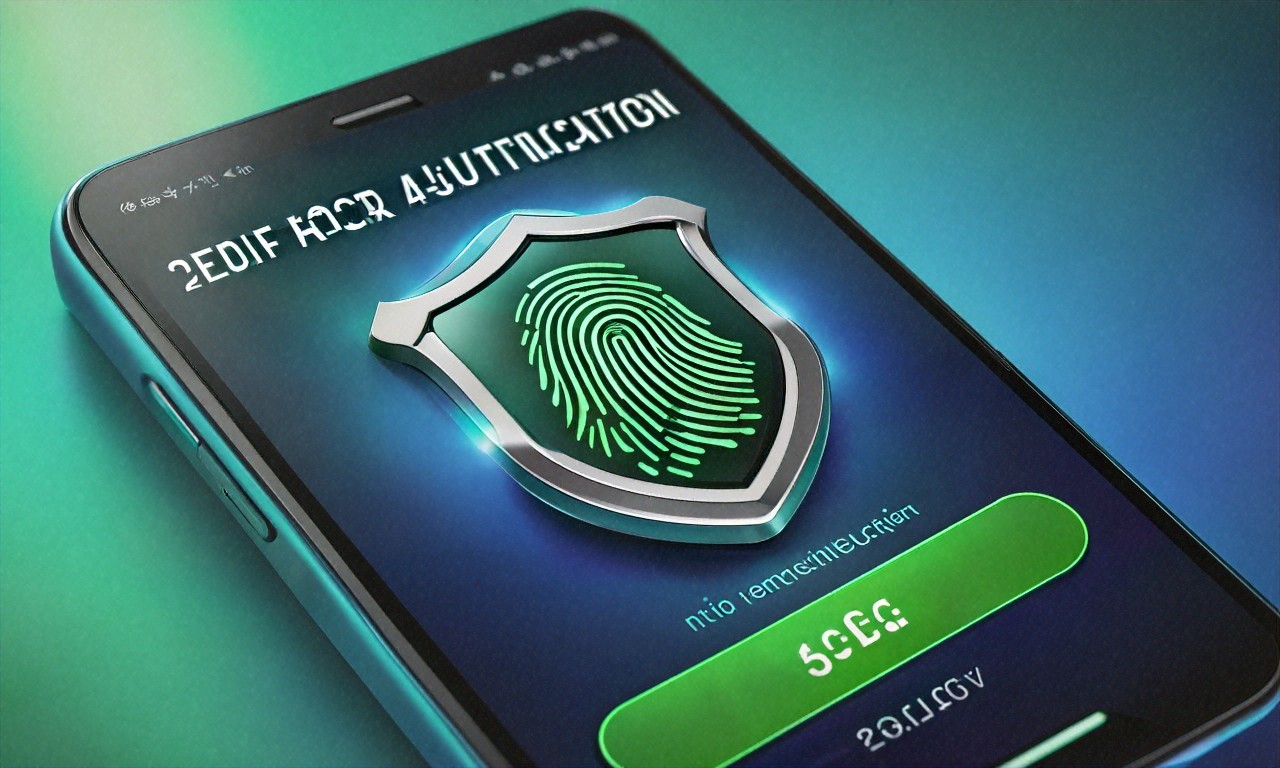
Passwords were supposed to be enough. That was the implicit promise of every login screen built between 1995 and roughly 2010, pick a good string of characters, keep it secret, and you’re safe. But were they ever actually enough? I’m not convinced they were, and the history of online authentication suggests the whole single-factor model was flawed from day one. Two-factor authentication, 2FA, has become the standard recommendation from every security professional alive, and yet most people still don’t use it. So maybe the better question isn’t “how does 2FA work” but “why did it take us this long to admit passwords were broken?”
A complete guide to two-factor authentication: how it works, comparing SMS, authenticator apps, and hardware keys, and which accounts to protect first.
The Early Days: When One Lock Felt Like Plenty
Back in the late ’90s and early 2000s, most people had maybe three or four online accounts. An email address, possibly a forum login, perhaps an early eBay account. Password reuse wasn’t even a recognized problem because there wasn’t much to reuse across. The threat model was simple: don’t write your password on a sticky note, don’t share it with strangers, and you’d probably be fine. And for a while, that more or less worked.
But the internet didn’t stay small. By the mid-2000s, the average person had dozens of accounts. Banking went online. Shopping went online. Medical records, tax filings, social connections, everything migrated to web services that demanded a username and password. Each new account was another point of exposure, another database storing your credentials (sometimes in plain text, which is horrifying but was disturbingly common). The single-factor model didn’t scale, and I think most security researchers knew it wouldn’t. They’d been talking about multi-factor authentication in academic papers since the 1980s. It just took the commercial internet two decades to catch up.
A colleague of mine, a network engineer, someone who absolutely knew better, lost $12,000 from his bank account because he’d been using the same password since 2014 with no second factor. Someone got in overnight, changed the contact email, and drained everything to a prepaid card. Took weeks of fighting to get reimbursed. That kind of story probably plays out thousands of times daily around the world, and it raises a question I keep coming back to: if passwords were always this fragile, why did the industry build everything on top of them?
2FA Arrives: A Second Lock on the Same Door
The concept behind two-factor authentication is pretty straightforward, even if people overcomplicate the explanation. You prove your identity with one thing you know (your password) and one thing you have (a phone, a hardware key) or one thing you are (a fingerprint, a face scan). Even if someone steals the password, they hit a wall at factor number two. Think of it like a deadbolt that requires a completely different key from the main lock. A burglar who picks one still has to deal with the other, and most will just move on to an easier target.
But here’s where my skepticism kicks in. Does adding a second factor actually solve the problem, or does it just shift it? We went from “protect this one secret” to “protect this one secret AND this device.” The attack surface changed. It didn’t disappear. And depending on which type of second factor you pick, the protection you’re getting varies wildly. Not all 2FA is created equal, which seems like something more people should be questioning.
The SMS Era: Texting Codes Felt Like a Breakthrough (It Wasn’t)
When SMS-based 2FA started rolling out widely around 2011-2013, it felt like a genuine improvement. You enter your password, a six-digit code arrives via text, you type it in. Simple. Familiar. Banks adopted it quickly, and for a few years, it seemed like the answer. But was it?
The biggest hole is something called a SIM swap. An attacker calls your mobile carrier, pretends to be you, and convinces the customer service rep to transfer your phone number to a new SIM card. Once they’ve got your number, every text meant for you goes to them instead. Including those 2FA codes. Sounds like it should be difficult, right? It’s shockingly easy. Sometimes attackers social-engineer the reps; sometimes they just bribe carrier employees directly. In 2019, a group used SIM swaps to steal over $100 million in cryptocurrency. That same year, Jack Dorsey, the CEO of Twitter, a company that should’ve had world-class security) had his own account hijacked through the same technique.
A particularly ugly case surfaced in 2022 when a college student in California orchestrated SIM swap attacks against dozens of victims, stealing millions in crypto. He’d gather personal data from breaches and social media, call T-Mobile and AT&T, and get numbers ported within minutes. Some victims lost their life savings. Carriers have since added protections (PIN requirements, account locks, but the underlying weakness hasn’t gone away. You don’t truly control your phone number. Your carrier does. That’s a problem no amount of customer service training can fully fix.
On top of SIM swaps, there’s SS7: the protocol that routes text messages between carriers. It has known vulnerabilities that sophisticated attackers can exploit to intercept messages. And if someone has malware on your phone, they can read your texts in real time. So SMS-based 2FA is better than a naked password. I won’t argue otherwise. But calling it “secure” feels like a stretch, and I think people who stop at SMS and assume they’re protected are probably fooling themselves to some degree.
Authenticator Apps Enter the Picture: A Real Improvement, Maybe
Time-based one-time password apps, Google Authenticator, Microsoft Authenticator, Authy, open-source options like Aegis on Android or Raivo on iOS, arrived as the next step up. When you set up 2FA on a service, it shows you a QR code. You scan it with the app. From that point on, the app generates a new six-digit code every 30 seconds, based on a shared secret and the current time. That’s the TOTP standard. Time-based One-Time Password.
The codes never travel over the cellular network. There’s no text to intercept, no phone number to swap. An attacker would need physical access to your unlocked device, or somehow a copy of the secret key used during setup, to generate valid codes. That’s a much higher bar. Probably. I say “probably” because the security of authenticator apps depends on the security of the phone they’re running on, and phones get compromised too. But compared to SMS, the improvement is substantial enough that I’d recommend it to anyone who asks.
Here’s how the protocol works underneath, for the technically curious. Both the server and your authenticator app share the same secret, exchanged when you scanned that QR code. Every 30 seconds, both sides run the same algorithm using that secret and the current timestamp, producing identical six-digit codes. When you type one in at login, the server checks it against its own calculation. Match? You’re in. Codes expire quickly and can’t be reused, if someone shoulder-surfs your code, it’s worthless within half a minute.
Setting It Up Takes Five Minutes (Seriously)
Go to the security settings of whatever account you want to protect. Gmail, GitHub, your bank. Look for “two-factor authentication” or “two-step verification.” Choose the authenticator app option. The site shows a QR code. Open your app, tap the plus icon, point your camera at the code. Done. You’ll be asked to enter a generated code to confirm it works.
Most services will also hand you a set of recovery codes at this point. One-time-use codes for emergencies. Copy them. Print them. Store them somewhere safe, a fireproof safe, a safety deposit box, whatever works. Don’t skip this. I’ve watched people lose access to important accounts because their phone broke and they had no backup plan. Recovery codes saved in a note on the same phone that just fell in a lake aren’t recovery codes at all.
Device loss is the thing that trips most people up. If your phone dies and you didn’t back up your authenticator, you could get locked out of everything. Authy supports encrypted cloud backup. Microsoft Authenticator does too. Google Authenticator recently added cloud sync — turn it on. Or export your secrets periodically and store them securely offline. Either way, have a plan before something goes wrong, not after.
Hardware Keys: The Strongest Option We’ve Got (For Now)
If authenticator apps are good, hardware security keys are better. These are small physical devices, USB sticks, essentially) that you plug into your computer or tap against your phone. YubiKey from Yubico is the best-known brand. Google makes the Titan Security Key. Thetis has options too. They all support a protocol called FIDO2/WebAuthn, and here’s what makes them different from everything else: they’re resistant to phishing by design, not just by practice.
When you register a YubiKey with a service, the key creates a unique cryptographic key pair for that specific site. The private key never leaves the hardware, it can’t be extracted, copied, or exported. At login, the service sends a challenge, the key signs it with the private key, and the service verifies it with the public key. But (and this is the part that matters, the key also checks the URL of the site requesting authentication. If you’re on a phishing page that looks exactly like Google but isn’t actually google.com, the key won’t respond. Period. The cryptographic handshake fails because the domain doesn’t match. No amount of visual trickery beats that.
Google deployed hardware keys to all 85,000+ employees back in 2017. The result? Zero successful phishing attacks on employee accounts since. Not a reduction. Zero. That’s remarkable, though I wonder whether it says more about the strength of hardware keys or the weakness of everything else. Probably both.
The downsides are real. You need to carry the key physically. If you lose it, you need a backup method. Most experts recommend buying two keys, registering both with every account, and keeping one in a safe place. NFC-enabled YubiKeys work with phones, just tap the key against the back. It adds maybe two seconds to login.
Which YubiKey to Buy?
Yubico’s lineup can be confusing, so here’s the short version. For most people, the YubiKey 5 NFC is the right pick: works with USB-A on computers and NFC on phones. If your machine only has USB-C, get the YubiKey 5C NFC. If you’re exclusively mobile, the YubiKey 5Ci has Lightning and USB-C. All support FIDO2, TOTP, and several other protocols. The cheaper Security Key series only supports FIDO2 — still great for web authentication but less versatile.
Buy two. Register both everywhere. Keep one on your keychain, one in a drawer at home. Maybe $60-100 total for the pair, a one-time purchase that lasts years. Though I sometimes question whether asking average users to carry a dedicated authentication device is a realistic long-term solution, or whether it’s a stopgap until something better arrives.
Why This Matters More Now Than Five Years Ago
Data breaches dump millions of credentials onto the dark web every month. People reuse passwords across sites, even people who know they shouldn’t. And phishing attacks have gotten scary good recently. I’ve seen phishing emails that perfectly replicate legitimate messages from Microsoft, Google, and major banks, complete with correct logos, formatting, personalized details pulled from social media. Some use AI-generated text that’s free of the spelling and grammar mistakes that used to be a giveaway. These days, telling real from fake takes genuine effort, and I’m not sure most people are equipped to do it consistently.
Without 2FA, a stolen password is a skeleton key. An attacker gets your email credentials from one breach and can reset passwords on every other service you use. They get into your bank, your social media, your cloud storage. They impersonate you, steal your identity, wreck your finances. It cascades fast. Cleaning up takes months.
With 2FA, that stolen password becomes one piece of an incomplete puzzle. The attacker hits a wall. They’d need your phone or your hardware key, and most attackers don’t have the resources or motivation to pursue that kind of targeted attack. They move on. To whom? To the next person without 2FA. Which is sort of a dark observation; you’re not eliminating the threat, just redirecting it to someone less prepared.
What to Protect First (And Why That Order Matters)
If you’re starting from nothing, the priority order matters more than people realize. Your email account is number one. Everything flows through email, password resets, verification links, notifications. If an attacker controls your email, they control the keys to everything else. Lock it down with the strongest 2FA available. Hardware key if your provider supports it (Gmail and Outlook both do), authenticator app at minimum.
Financial accounts come next. Banks, brokerages, PayPal, Venmo, crypto exchanges. Then cloud storage. Google Drive, Dropbox, iCloud, OneDrive. Then your password manager, which should absolutely have 2FA since it’s the vault holding everything else. Social media after that. Then work accounts. Slack, GitHub, Jira, corporate email. Shopping accounts with saved payment info. Domain registrars and hosting providers.
- Email accounts. Gmail, Outlook, ProtonMail. These are the master keys.
- Financial accounts. Banks, brokerages, PayPal, Venmo, crypto exchanges.
- Cloud storage — Google Drive, Dropbox, iCloud, OneDrive.
- Password manager. Bitwarden, 1Password, LastPass, KeePass.
- Social media. Twitter/X, Facebook, Instagram, LinkedIn.
- Work accounts. Slack, GitHub, Jira, corporate email.
- Shopping. Amazon, eBay, any site with saved payment methods.
- Domain and hosting. Namecheap, GoDaddy, Cloudflare, AWS.
The Excuses People Make (And Whether They Hold Up)
“It’s too inconvenient.” Is it though? Five extra seconds per login. You enter a password, tap a key or type a code. Five seconds versus weeks of dealing with identity theft and the emotional wreckage that comes with it. I don’t think that math is complicated.
“I don’t have anything worth stealing.” You’ve got a bank account. You’ve got an email address someone can use to impersonate you. You’ve got personal information that sells on dark web marketplaces. And even if somehow none of that applied, compromised accounts get weaponized against your contacts, your colleagues, your family. The “nothing to steal” argument has never been particularly convincing to me.
“My password is really strong.” Good for you. Doesn’t matter when the service itself gets breached and your hash gets cracked. Doesn’t matter if you accidentally type it on a phishing site. Doesn’t matter if there’s a keylogger on some public computer you used once at an airport. A strong password is a necessary first layer, not a sufficient one.
“I’ll get around to it eventually.” No, you won’t. That’s what everyone says. Open your email settings in another tab right now and turn on 2FA while you’re thinking about it. Five minutes. I’ve seen too many people learn this lesson by losing money, losing access, or spending weeks dealing with aftermath that could’ve been avoided.
Passkeys: Maybe the Future, But We’re Not There Yet
Recently, more and more services have started offering passkeys. Apple, Google, and Microsoft have all rolled out support. Passkeys build on the same FIDO2/WebAuthn technology behind hardware keys, but they’re built into your phone or computer. Your device itself becomes the authenticator, using your fingerprint or face scan to approve logins. No separate hardware to carry.
On paper, passkeys are great. Phishing-resistant by design. Easier than typing codes. Can sync across devices through your cloud account. But are they ready to replace everything else? I’m not so sure. We’re in a messy transition period right now where support is inconsistent, the user experience varies depending on your platform and browser, and plenty of services don’t offer them yet. I’d say set them up where available, but keep your authenticator app and hardware keys as backup. It’ll probably be a few more years before passkeys mature enough to stand alone, if they ever fully do.
Hard-Won Advice From Watching Things Go Wrong
After years of watching people recover (or fail to recover) from security incidents, a few patterns stick out.
Never rely on SMS as your only second factor if you’ve got the option to use an authenticator app or hardware key. SMS is the weakest form of 2FA, and it’s the one attackers target most. Use it only as a last resort for services that don’t support anything better.
Back up your authenticator. I can’t say this enough. If you use Authy, enable encrypted backup. Microsoft Authenticator supports cloud sync: turn it on. If your app doesn’t support backup, export your secrets periodically and store them securely. And always save the recovery codes services hand you during setup.
Don’t concentrate everything on one device. If your authenticator, your SMS codes, and your email all live on the same phone, losing that phone means losing access to everything simultaneously. A hardware key as an independent backup and printed recovery codes stored offline give you redundancy that could save you from a very bad day.
Call your mobile carrier and set up a port-freeze or SIM lock PIN. Most carriers offer this now — it blocks anyone from porting your number without a separate PIN. Takes ten minutes on the phone. T-Mobile, AT&T, and Verizon all have options. Ask specifically for account takeover protection.
When You Think You’ve Been Compromised
Unexpected 2FA prompts, codes texted to you that you didn’t request, push notifications asking you to approve a login you didn’t initiate, mean someone is trying to get in. Don’t approve anything. Don’t ignore it either. Go directly to the service’s website (don’t click links in suspicious emails or texts) and change your password immediately. Review your 2FA settings, check for unfamiliar devices or phone numbers, look at recent login activity. For financial accounts, call the institution directly.
There’s an attack called MFA fatigue, or prompt bombing, where an attacker triggers push notifications over and over, hoping you’ll eventually tap “approve” just to make them stop. Uber got breached in 2022 partly through this technique, someone bombarded an employee with notifications until they caved. Don’t be that person. Repeated unexpected prompts are a red flag, not an annoyance to dismiss.
Where Does This All Go?
2FA isn’t a silver bullet. Nothing in security is, and anyone who tells you otherwise is selling something. Hardware keys are the strongest option we’ve got today. Authenticator apps are very good. SMS codes are acceptable when nothing else is available. The hierarchy seems clear enough. But I keep wondering whether we’re just layering patches on top of a broken model, whether the whole username-plus-password-plus-second-factor approach is a temporary fix that’ll look quaint in ten years. Passkeys might be the bridge to something different. Biometrics might play a bigger role. Or maybe we’ll invent entirely new authentication methods that make this entire conversation irrelevant.
My colleague who lost $12,000 eventually enabled 2FA on everything he could find. It took that kind of shock to get him moving. You probably don’t need to lose thousands of dollars to be motivated, or maybe you do, and that’s part of the problem. Spend thirty minutes today going through your most important accounts. Download an authenticator app. Buy a YubiKey if you’re ready for the strongest protection available right now. Save those backup codes somewhere you won’t lose them. But even after all of that, I honestly don’t know where this goes from here. Authentication keeps evolving because the attacks keep evolving, and I’m not sure we’ll ever reach a point where we can say “this is enough” and actually mean it.

(0) Comments