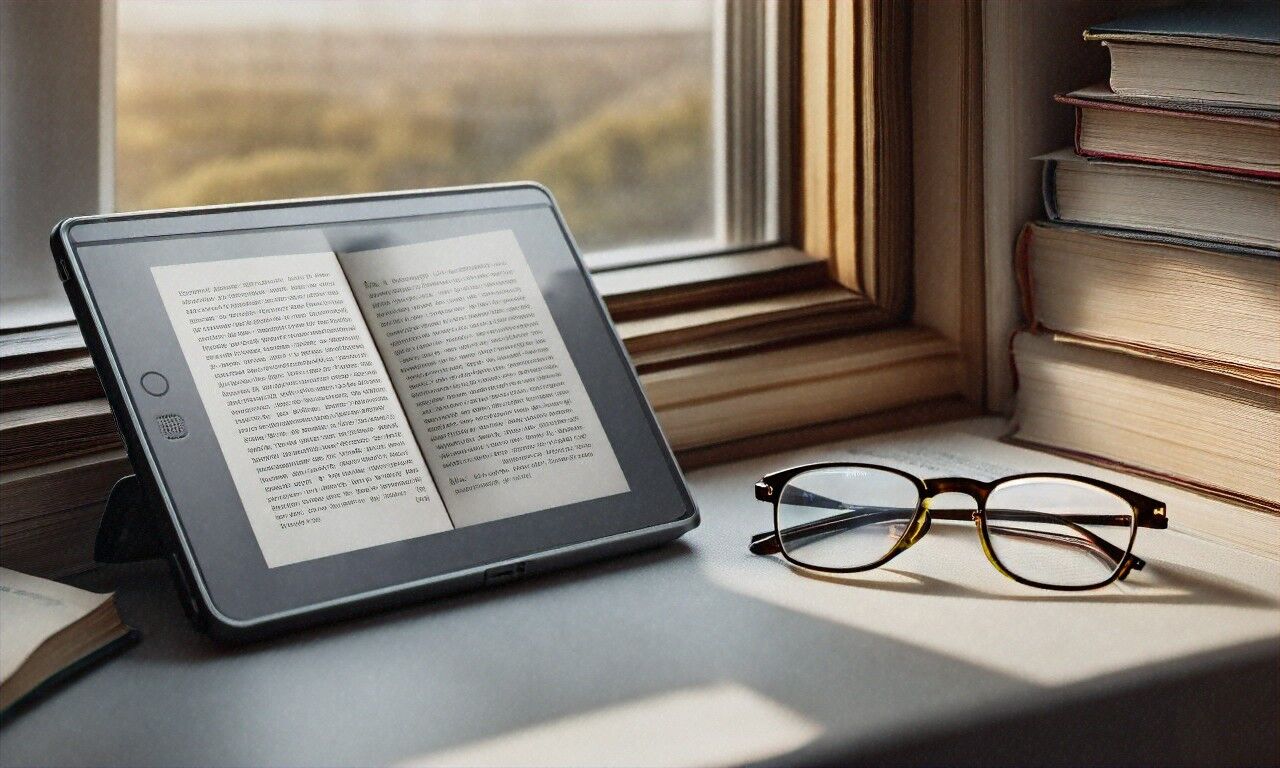
I gave up on reading for about three years. Not because I stopped wanting to, I just couldn’t do it anymore. Twenty minutes into a book on my iPad and my eyes would start burning, my attention would drift to something else, and I’d end up scrolling Twitter instead. Figured it was just me getting older or losing patience. Turns out it was the screen. I switched to an e-ink tablet eight months ago and I’ve finished more books since then than in the previous three years combined.
Before I get into the specific devices, it’s probably worth talking about why regular screens do what they do to your eyes in the first place. LCD and OLED panels work by firing light directly at you. That’s the whole mechanism, a backlight or individually lit pixels pushing photons straight into your pupils for as long as you’re looking at them. Ophthalmologists have a clinical name for what happens next: digital eye strain, sometimes called computer vision syndrome. Dry eyes, blurred vision, headaches, neck tension. I had all four and assumed it was just life. Turns out it was my iPad.
Blue light gets dragged into these conversations a lot, and I get why people are skeptical. Companies have turned it into a marketing gimmick to sell you $40 glasses that might do very little. But the underlying research isn’t fabricated. Work published in the International Journal of Ophthalmology has linked prolonged blue light exposure to retinal stress and disrupted melatonin production, which messes with sleep. Night mode on your phone knocks the edge off, sure. It doesn’t solve the core issue though: you’re still pointing a light source at your face for hours.
And then there’s PWM flicker, which I think might be the sneakiest part of the whole thing. OLED screens use pulse-width modulation to control brightness. At lower settings, the display flickers on and off hundreds of times per second. You can’t consciously see it happening. Your brain registers it anyway. Some people get headaches from OLED phones and never connect the dots. I was one of them for probably a year before I figured it out, and only because I stopped using my OLED phone for bedtime reading and the headaches went away. Correlation isn’t causation, et cetera. But still.
How E-Ink Actually Works
E-ink, electrophoretic display technology, for the technically inclined, operates on a completely different principle. No light gets emitted. Instead, the screen contains millions of tiny microcapsules, each filled with positively charged white particles and negatively charged black particles floating in clear fluid. Apply an electric field, and the particles rearrange themselves on the surface to form text or images. What reaches your eyes is ambient light bouncing off the display, the same way light bounces off a printed page. No backlight. No flicker. No photon cannon.
Reading on one of these things feels strange at first, precisely because nothing hurts. Your eyes treat it like paper because, from an optical standpoint, it more or less is paper. Contrast ratios resemble ink on a white page. The screen only refreshes when you turn a page, so there’s no constant redrawing taxing your visual system in the background. I remember picking up a Kindle for the first time after years of iPad reading and just.. waiting. Waiting for the strain to kick in. Four hours later, nothing. That hadn’t happened in a very long time.
Living With the Kindle Scribe
My entry point into what I’d call “serious e-ink” was the Kindle Scribe. Amazon pitched it as a reading-and-writing device. On the reading front, they delivered. A 10.2-inch display running at 300 PPI means text comes through sharp and clean regardless of font size. It’s a visible step up from older Kindles, and the larger screen means PDFs don’t make you want to hurl the thing across the room. I’d tried reading academic papers on a standard Kindle once. Once. The Scribe handles them without drama.
Writing on it is another story. Fine, I guess, would be my honest assessment. The pen feels decent. Latency is low enough that you don’t notice it. But the organizational tools around your handwritten notes are clunky, exporting notebooks is harder than it should be, the folder system feels like an afterthought, and anyone coming from Notion or OneNote will find it limiting. I’ve settled into using the Scribe as a reader with occasional margin annotations, and it’s great for that. If note-taking is what you’re really after, though, keep going. I’ve got a different suggestion.
Battery life deserves its own paragraph because it’s that good. I charge the Scribe roughly every two weeks with daily use. My iPad needed a charge every day or two during heavy reading. That difference sounds small until you live with it. You just stop thinking about the battery entirely. It’s there. It works. You read. Maybe that doesn’t sound exciting, but after years of low-battery anxiety, “boring reliability” felt like a gift.
The reMarkable 2, or: What Happens When You Optimize for Writing
If the Kindle Scribe is a reader that happens to accept handwriting, the reMarkable 2 is a notebook that happens to display text. And that gap matters a lot depending on what you want. The reMarkable 2 has, from what I’ve seen, the best stylus-to-screen writing experience of any digital device currently being sold. Full stop, no qualifiers needed. The screen surface has a deliberate texture that creates friction against the pen tip, mimicking the drag of pen on paper so convincingly that it’s almost unsettling. First time I wrote on it, I laughed. My handwriting actually looked better on this thing than it does on real paper, which is either impressive engineering or a sad commentary on my penmanship.
reMarkable claims 21 milliseconds of latency. I believe them. There’s no perceptible gap between where your pen touches and where ink appears. I’ve tried the iPad with Apple Pencil, Samsung’s Galaxy Tab with S Pen, and various Wacom tablets over the years. None of them match the reMarkable for the raw physical sensation of writing. It’s the only digital device that has genuinely replaced a paper notebook in my daily life.
But, and this matters) the reMarkable 2 is a mediocre reading device. Screen resolution sits at 226 PPI, which works for handwriting but looks noticeably softer than the Kindle Scribe when displaying book text. There’s no front light at all. Not even an option for one. So you need a lamp, just like with an actual book. The e-book ecosystem is sparse; you’re mostly sideloading EPUBs and PDFs. No Kindle store access, obviously, and no library lending apps like Libby. For pure reading purposes, it’s the wrong tool.
Where it shines (and I mean this literally, since the screen reflects whatever light you point at it, is focused work. Meeting notes, brainstorming sessions, journaling. I bring my reMarkable 2 to every meeting now. No notifications pop up. No apps beckon. No impulse to check social media. I pay attention, I take better notes, and I actually remember what was discussed. That tradeoff is worth the mediocre reading experience, at least for me.
Kobo Libra: Quietly Better Than It Has Any Right to Be
Kobo has been living in Amazon’s shadow for years, which seems unfair because the Kobo Libra Colour (and its predecessor, the Libra 2) gets several things right that the Kindle still doesn’t. The big one is native Libby/OverDrive integration. If you borrow books from your local library, and honestly, more people should, it’s free books, the Kobo lets you browse, borrow, and download them directly on the device. No sideloading. No browser workarounds. On a Kindle, you’ve got to go through a web browser, send the book to your Amazon account, and hope the formatting survives the journey. On a Kobo, you tap a few buttons and start reading. It just works.
Form factor deserves mention too. The Libra has an asymmetric design with a grip on one side and physical page-turn buttons. I can’t emphasize enough how much better physical buttons are than touchscreen swipes when you’re reading in bed with cold hands under a blanket, barely willing to move a finger. A button press requires almost no effort or precision. Amazon removed physical buttons from most Kindles a while back. I think that was a mistake, and I suspect they might too, given how often it comes up in forums.
File format support on the Kobo is broader as well. EPUB, MOBI, PDF, CBR, CBZ, and others, all handled natively without conversion. If you acquire e-books from, let’s say, a variety of sources, the Kobo accepts them without complaint. Kindle locks you into Amazon’s ecosystem unless you run everything through Calibre first, which works but adds friction nobody asked for.
One gripe. The software can feel sluggish in spots. Page turns occasionally hang for a half-second too long. The home screen loads slowly after a restart. It’s not enough to ruin the experience, but coming from the Kindle’s more polished software, you notice it. Rakuten, Kobo’s parent company, could probably stand to invest more in optimization there.
Boox Tab Ultra C: For People Who Want Everything at Once
The Boox Tab Ultra C exists because someone apparently asked “what if an e-ink tablet ran full Android?” and the engineers at Boox said “sure, why not.” It runs a modified version of Android, so you can install Kindle, Kobo, Libby, Google Play Books, Audible, Pocket, Instapaper, any reading app that exists. You can also install a web browser, email, Spotify, and technically YouTube, though watching video at what feels like 15 frames per second on an e-ink display is an experience I’d describe as “technically possible.” The color version helps slightly. It’s still e-ink. Don’t.
Speaking of color: the Tab Ultra C has a 10.3-inch display using Kaleido 3 technology. I should set expectations here. E-ink color doesn’t look like LCD color. It’s muted, low-saturation, washed out. Think color newspaper, not glossy magazine. For comics, manga, and color PDFs, it’s acceptable. For anything requiring color accuracy, it falls short. But for reading text, browsing articles, and taking notes, the versatility is genuinely hard to beat.
Writing with the included stylus lands somewhere between the reMarkable 2 and the Kindle Scribe, not as good as the former, better than the latter. The pen offers 4,096 levels of pressure sensitivity, and the note-taking app is surprisingly capable. You can mix handwritten and typed text, insert images, record audio alongside notes, and export in multiple formats. Swiss Army knife is probably the right metaphor.
Price is the catch. The Tab Ultra C runs around $600, which puts it uncomfortably close to iPad territory. And because Android apps were designed for 60fps LCD screens, they don’t always behave gracefully on a display that refreshes roughly once per second. Scrolling leaves ghosting artifacts. Animations stutter. You’ve got to adjust your expectations and your settings — I’ve learned to use page-mode scrolling in browsers and enable speed refresh mode when moving through menus. Once you dial it in, it’s a capable device. Out of the box, though, it can be frustrating enough that some people probably return it before discovering the right configuration.
What the Research Actually Shows
I’ve been throwing around claims about eye strain, so here’s the supporting evidence. A 2013 study published in PLOS ONE compared reading on e-ink devices versus LCD tablets and found that e-ink produced significantly less visual fatigue. They measured blink rate and subjective strain scores. Participants reading on LCDs for two hours showed reduced blink rates, a marker of visual concentration that leads to dry eyes) and reported more discomfort than those reading on e-ink for the same period.
Researchers in 2019, publishing in Optometry and Vision Science, went further. They measured accommodative response, which is essentially how hard your eye muscles work to maintain focus. E-ink required less accommodative effort than both LCD and OLED. Makes intuitive sense when you think about it: human vision evolved to process reflected light (sunlight bouncing off surfaces, not emitted light beaming directly into the eye. Reading on e-ink is, from your visual system’s perspective, closer to what it was designed for.
Then there’s the sleep angle. Multiple studies, including work from Harvard Health, have shown that blue light exposure in the evening suppresses melatonin and shifts circadian rhythm. Reading on an iPad before bed delays sleep onset by an average of 10 minutes and reduces REM sleep quality. Reading on an e-ink device, particularly one without a front light, or with a warm-toned front light, has no measurable impact on melatonin. If you read before sleep (and you should, it’s good for you), e-ink is the objectively better choice for protecting your rest.
Personally, I can confirm all of this lines up with my experience, though I realize anecdotes aren’t data. Since switching to e-ink for recreational reading, the evening headaches are gone. I fall asleep faster. My optometrist actually commented on it at my last visit, my dry eye symptoms had improved measurably. I still sit in front of LCD monitors all day for work, so e-ink didn’t fix everything. But removing two to three hours of evening LCD exposure and replacing it with e-ink made a noticeable difference. Could be placebo. I don’t think it is.
A Quick Note on Front Lights
Most modern e-ink readers include front lights, and this trips people up. “Wait,” they say, “if the whole point is avoiding backlights, doesn’t a front light defeat the purpose?” No. A front light shines light across the display surface, illuminating the screen the way a desk lamp illuminates a book. Light hits the e-ink surface, bounces off, and reaches your eyes as reflected light. A backlight shines through the display directly at you. Different mechanism, different effect on your eyes.
Quality varies, though. The Kindle Paperwhite and Scribe have excellent front lights — even distribution, warm tone, adjustable. Kobo’s Libra also does well here, with adjustable color temperature. Some cheaper e-ink devices have front lights with visible LED hotspots along the bottom edge of the screen, which is distracting and annoying. When you’re reading reviews, pay attention to front light quality. It matters more than most spec sheets suggest.
The Unexpected Part: Boredom as a Feature
Something I didn’t anticipate when I made the switch was how much more I’d end up reading. Not slightly more. Roughly three times as many books per year. And it’s got nothing to do with e-ink being some kind of productivity hack. It’s because e-ink devices are boring. Gloriously, productively, almost defiantly boring. When I read on my iPad, notifications would pull me away. I’d check social media “for a second.” One YouTube video. Then it’s midnight and I’d read maybe twelve pages. On a Kindle, there’s nothing else to do. No notifications. No functional browser. No temptation. Just the book.
I’ve come around to seeing this as the most important feature, maybe even more so than the eye strain benefits. In a world where every device fights for your attention and every app is engineered to keep you scrolling, picking up an e-ink reader is a small act of defiance. “Right now I’m reading. Nothing else.” My focus improved. Reading speed went up. Retention got better. Whether that’s the device or just the absence of distractions, I’m not sure it matters. Result’s the same.
Picking the Right One
After living with all four of these devices daily for an extended period, here’s where I’ve landed. If your primary activity is reading books purchased through Amazon and you want the cleanest possible reading experience, get the Kindle Scribe for the big screen or the Kindle Paperwhite for portability. Amazon’s bookstore and Whispersync (which keeps your place synced between audiobooks and e-books) remain unmatched.
Library users should probably just get the Kobo Libra. Native OverDrive integration is a genuine differentiator, the physical page-turn buttons are a comfort feature you’ll miss on everything else, and the smaller size makes it better for commutes and travel.
If handwritten note-taking matters to you, not “would be nice” but “I actually need this”) the reMarkable 2 is the only serious option. Accept that it’s a so-so reader and pair it with a Kindle or Kobo for books. Two devices is fine. I carry both my reMarkable 2 and Kindle Scribe in my bag every day, and I’ve made peace with that.
Power users who want a single device covering every use case should look at the Boox Tab Ultra C. It does everything, though nothing as well as the specialists. Swiss Army knife, again. Sometimes versatility beats perfection, and the ability to run any Android reading app on e-ink hardware is a freedom no other device in this category offers.
Answering the Objections
“E-ink is too slow.” Five years ago, maybe. Modern e-ink displays refresh in about 120 milliseconds for a full page turn, which is imperceptible during normal reading. Scrolling and animation are still sluggish, yes. But you’re reading a book. You don’t need 120 frames per second to turn a page. If display speed is your priority, you don’t want an e-ink tablet: you want a different device for a different purpose.
“I can’t highlight and take notes as easily.” You can, actually. The Kindle Scribe lets you write on pages with the stylus. Kobo has solid highlighting and annotation tools. Even the basic Kindle Paperwhite has supported highlighting and notes for over a decade. And here’s something I didn’t expect: I take better notes on e-ink because I’m more deliberate. On an iPad, I’d highlight everything because it was effortless. On e-ink, I only mark what genuinely matters. The constraint improved the output.
“They’re too expensive just for reading.” A Kindle Paperwhite costs $150. A Kobo Libra runs $190. You’ve probably spent more on a dinner for two recently. Unlike dinner, an e-ink reader lasts five to seven years without complaint. My Kindle Voyage from 2014 still works. Cost-per-use on these devices is shockingly low. And if you’re borrowing library books through your Kobo or Kindle, the device pays for itself within a few months compared to buying physical copies.
The best reading device is the one that makes you want to read. For me, that turned out to be the device that hurt my eyes the least. Go figure.
Here’s what I’d actually suggest you do, if any of this resonated: go to a Best Buy or a bookstore that stocks e-readers, and hold one in your hands for five minutes. Read a page. Turn to the next. Notice how your eyes feel. That’s it. Not a huge commitment, not a $600 gamble on a Boox tablet. Just five minutes of reading on e-ink, and you’ll know whether your eyes have been trying to tell you something.


(0) Comments